Appearance
Managing Your Library
This guide covers how to add, organize, and remove content from your Mokuro Library.
Uploading Manga
Mokuro Library is designed to upload entire Mokuro-processed directories at once.
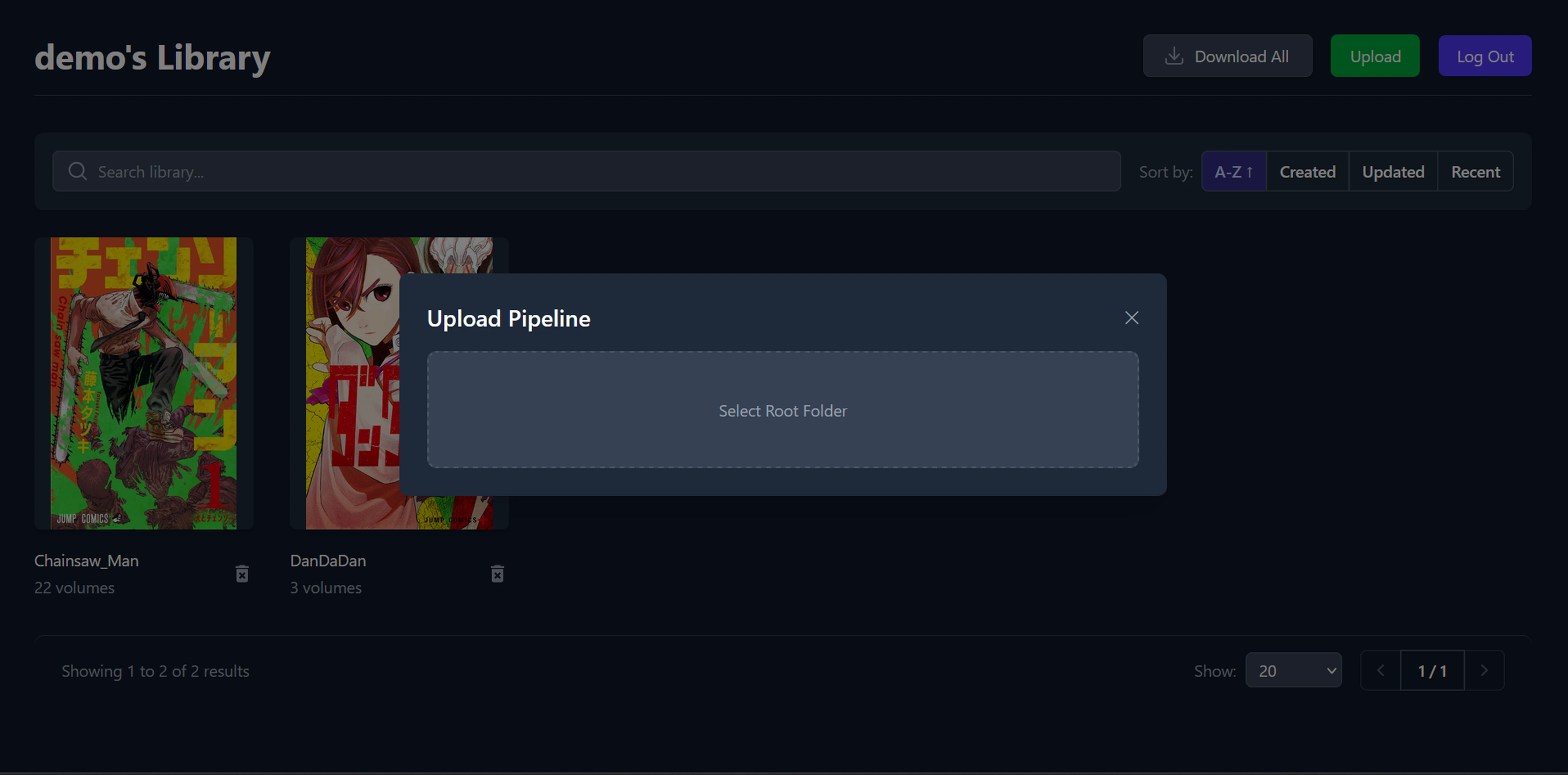
- From the main library page, click the Upload button to open the upload modal.
- The application uses a Directory Upload method. You must select the root folder that contains your processed manga.
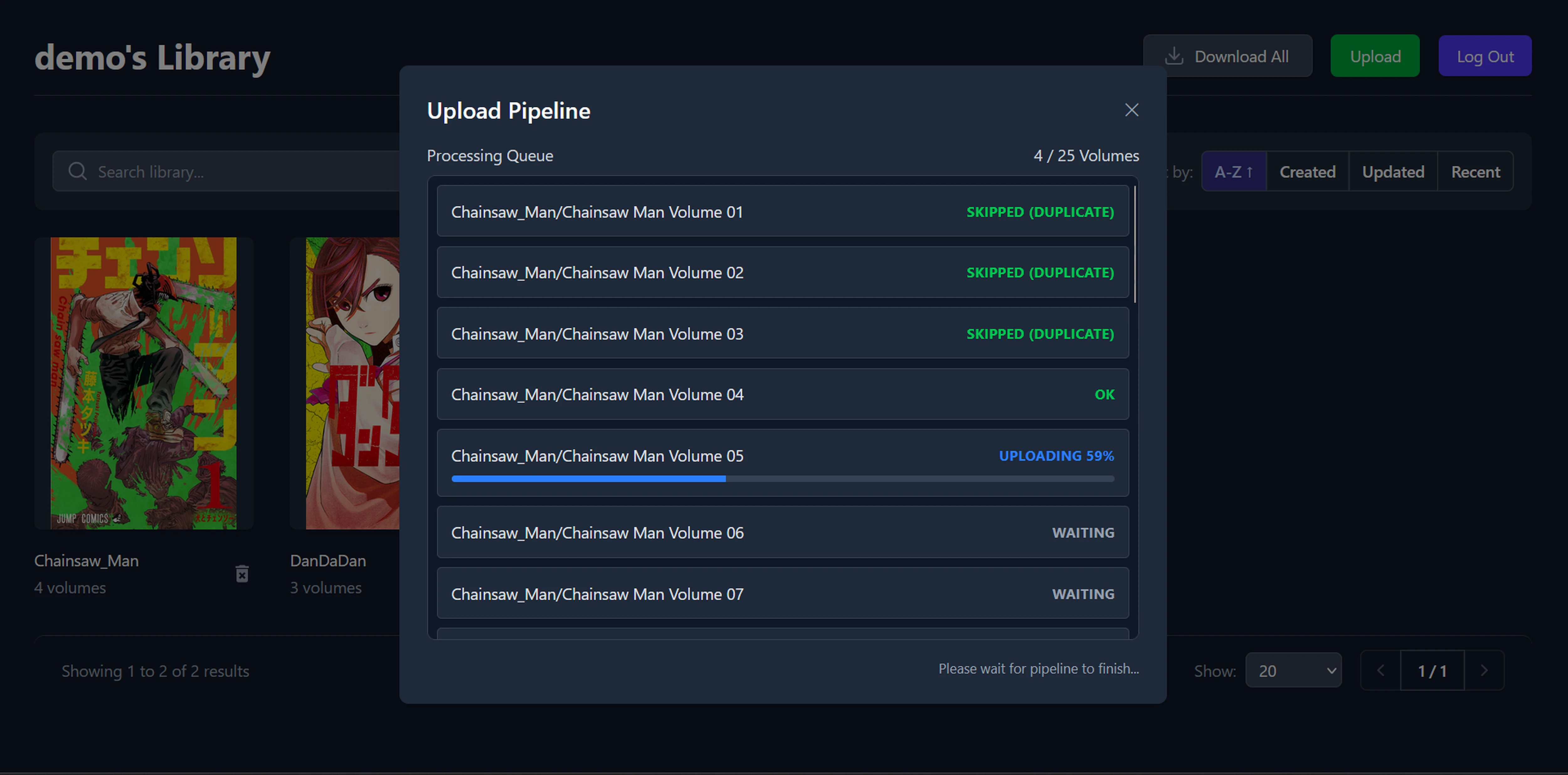
- The server will parse the folder structure to identify series and volumes.
Required Folder Structure
For the upload to succeed, your selected folder must follow the standard Mokuro output format. The server expects to find:
- Images:
Your-Root-Folder/<series_title>/<volume_title>/<image_name>.<ext> - Mokuro File:
Your-Root-Folder/<series_title>/<volume_title>.mokuro
My Manga Uploads/               <-- You can point the upload modal here
├── Yotsuba&!/                  <-- or here (Series title)
│   ├── Volume 1/               <-- volume_title (image folder)
│   │   ├── 001.jpg             <-- file names don't have to be strict
│   │   ├── 002.jpg
│   │   └── ...
│   ├── Volume 2/
│   │   ├── 001.jpg
│   │   └── ...
│   ├── Volume 1.mokuro         <-- volume_title.mokuro (data file)
│   │── Volume 2.mokuro
│   └── Yotsuba&!.png           <--- series cover image
│
└── Another Series/
    ├── Chapter 1/
    │   ├── 01.png
    │   ├── 02.png
    │   └── ...
    │── Chapter 1.mokuro
    └── Another Series.png
The server will automatically create series and volumes based on the <series_title> and <volume_title> folder names it finds.
Note on Duplicates
If you upload a directory that contains a series and volume that already exists in your library, the server will ignore it. It will not overwrite your existing data.
Managing Series
On the main library page, clicking on a series will take you to its dedicated page. From here, you can manage settings for that specific series.
Setting a Series Cover
You can upload a custom cover image for each series. On the series page, find the option to upload a new cover (by clicking on the existing cover image).
Deleting Content
You can delete individual volumes or remove an entire series.
- Delete a Volume: On the series page, each volume will have a delete option.
- Delete a Series: On the series page, there will be an option to delete the entire series.
WARNING
Deleting a series will also delete all volumes and reading progress associated with it. You will be asked to confirm this action.