Appearance
Using the Reader
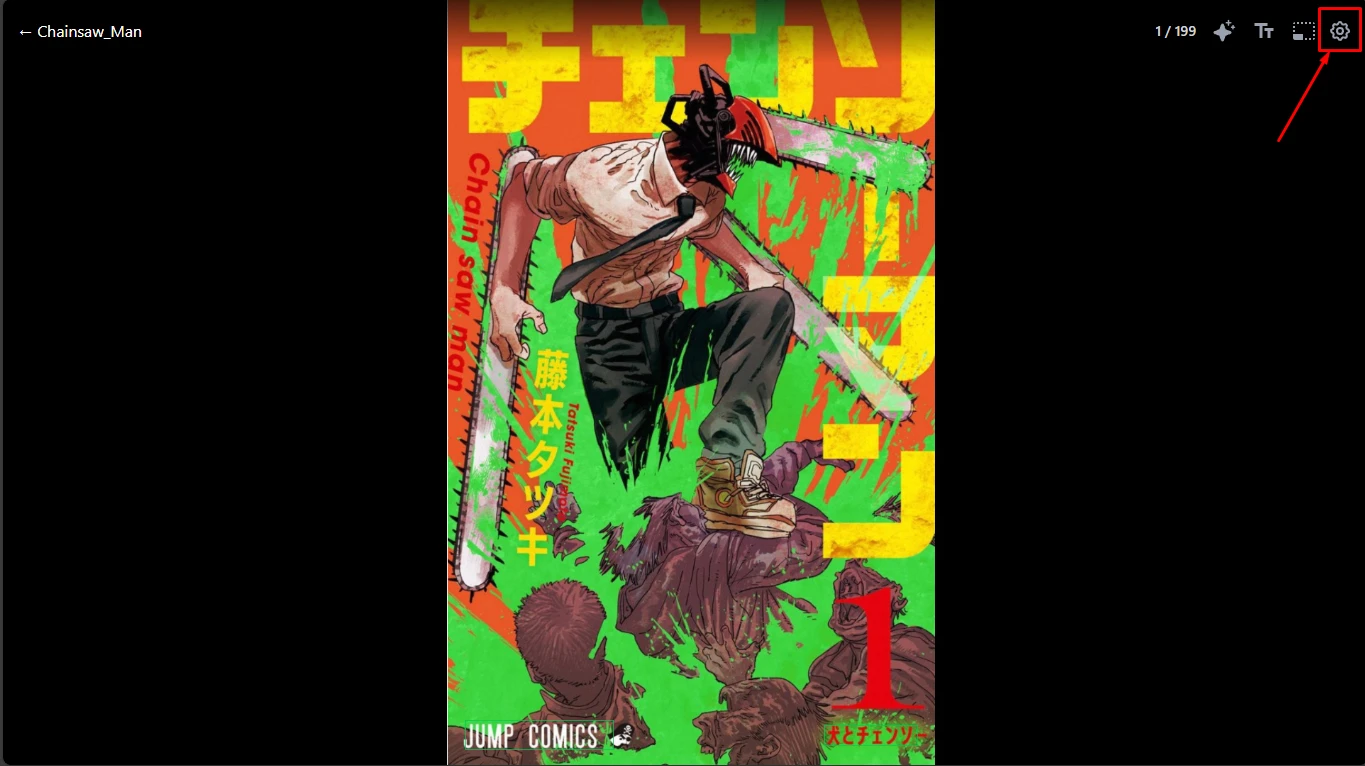
The reader is where you will view your manga and access all reading-specific settings.
Reader Settings
All reader preferences are saved to your account, so your settings will persist across devices.
Layout Modes
Mokuro Library provides three distinct layout modes.
1. Single Page
This is the default mode, showing one page at a time. It is ideal for most manga and works well on all screen sizes.
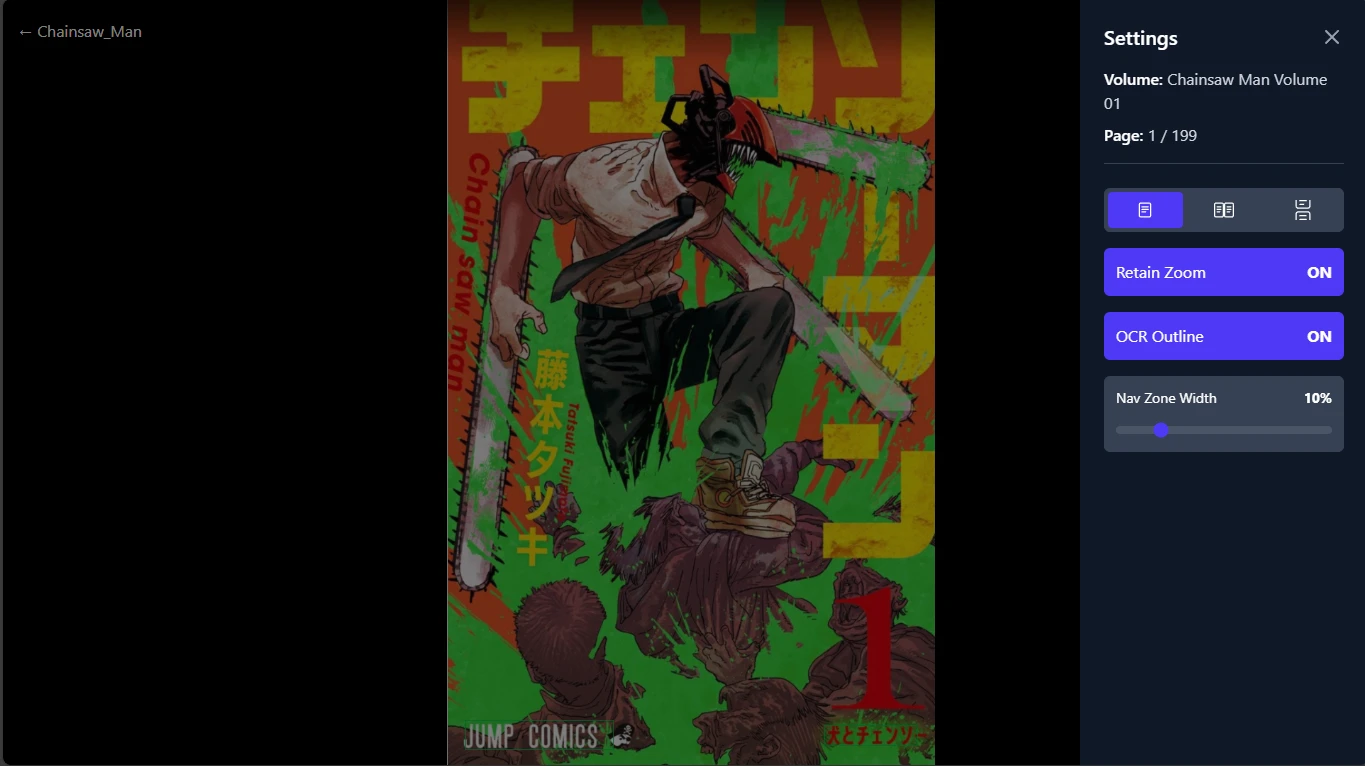
2. Double Page (Spread)
This mode displays two pages side-by-side, simulating an open book. When you enable this mode, two additional settings become available:
- Reading Direction: Sets the page order to Right-to-Left (for most manga) or Left-to-Right.
- Dual-Page Offset: Allows you to choose whether to start the two-page spread on an even or odd page number. This is useful for correcting the layout if a volume's first page is a cover or a title page.
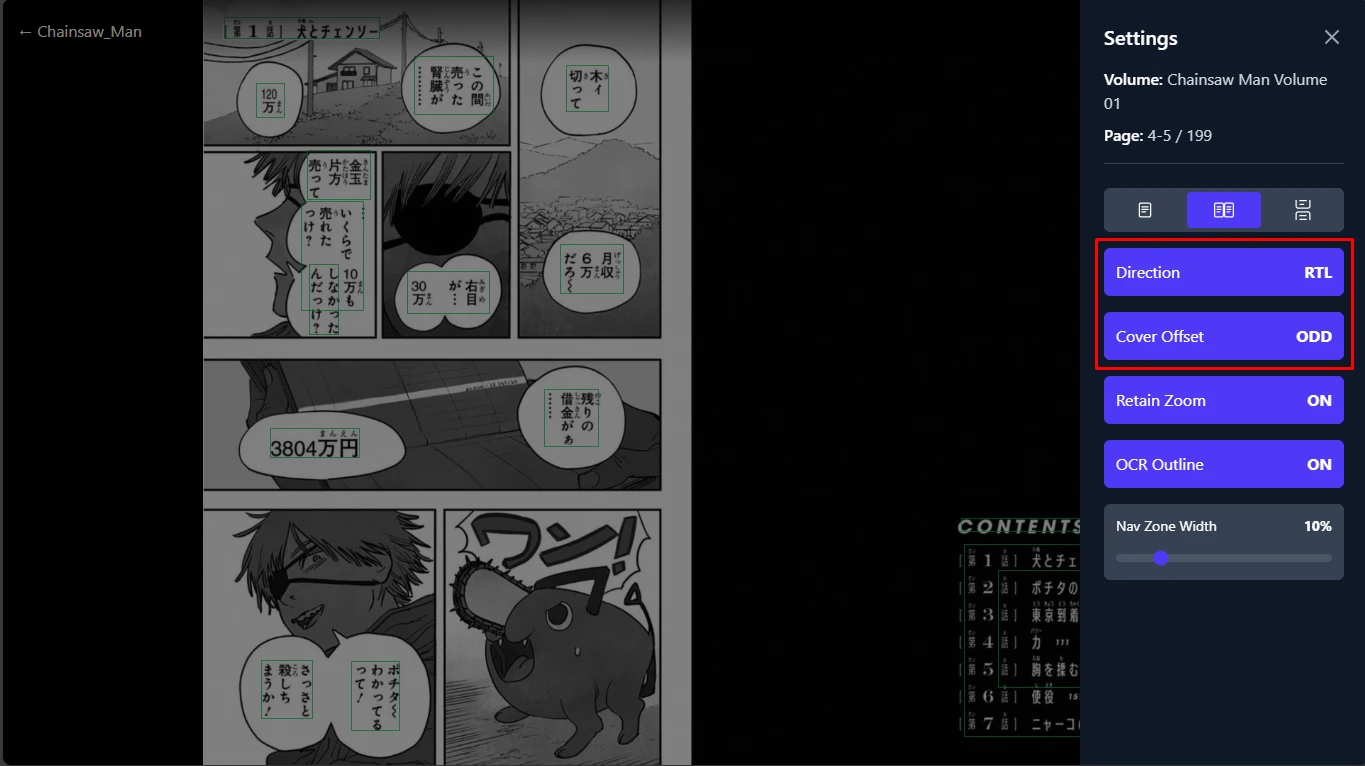
3. Vertical (Infinite Scrolling)
This mode stacks all pages of the volume into a single, vertical, scrollable column, similar to a webtoon.
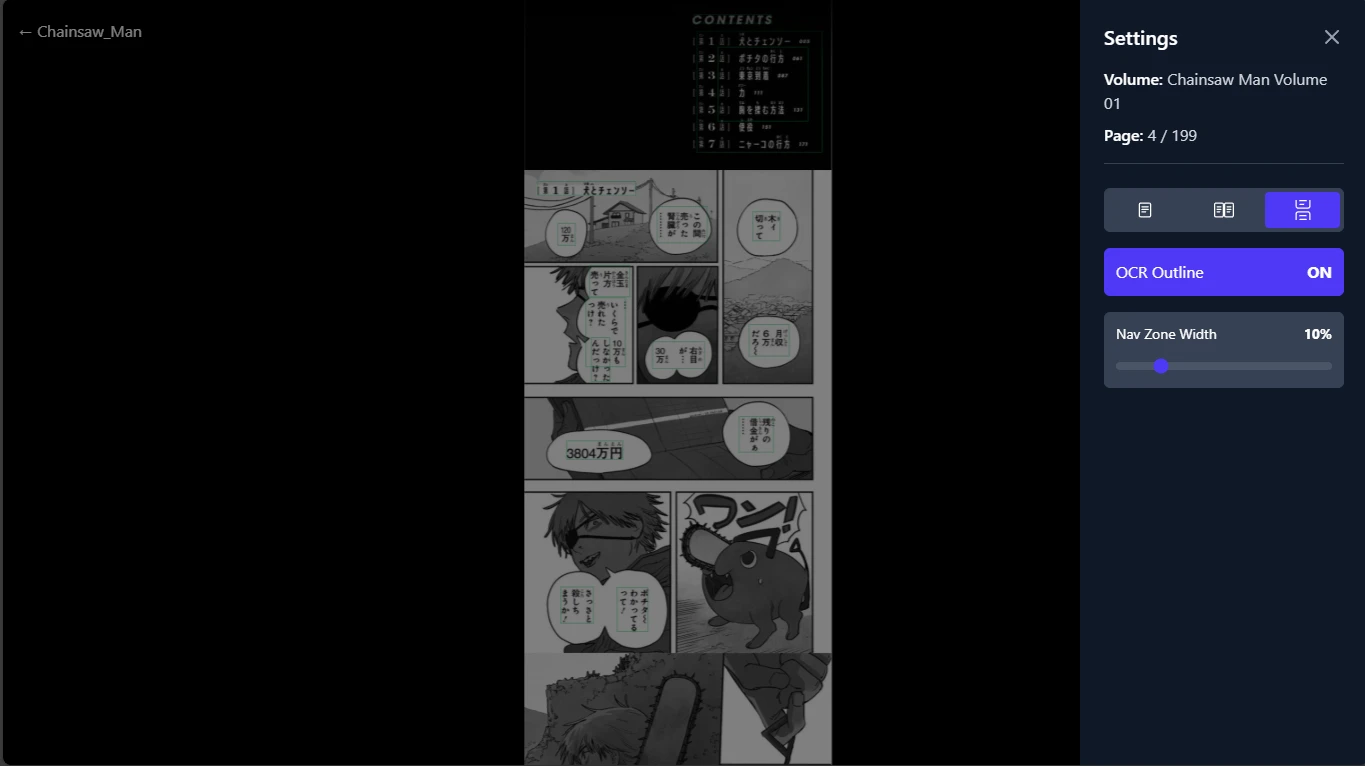
When using Vertical mode:
- You navigate by scrolling with your mouse, trackpad, or finger.
- The on-screen page navigation buttons (Next/Previous) will be hidden.
- Keyboard navigation (Left/Right arrows) will be disabled.
- The "Reading Direction" and "Dual-Page Offset" settings will be hidden, as they do not apply.
Navigation and Other Features
- Page Navigation: In Single and Double Page modes, you can navigate by clicking the large buttons on the sides of the screen or by using the Left and Right arrow keys on your keyboard.
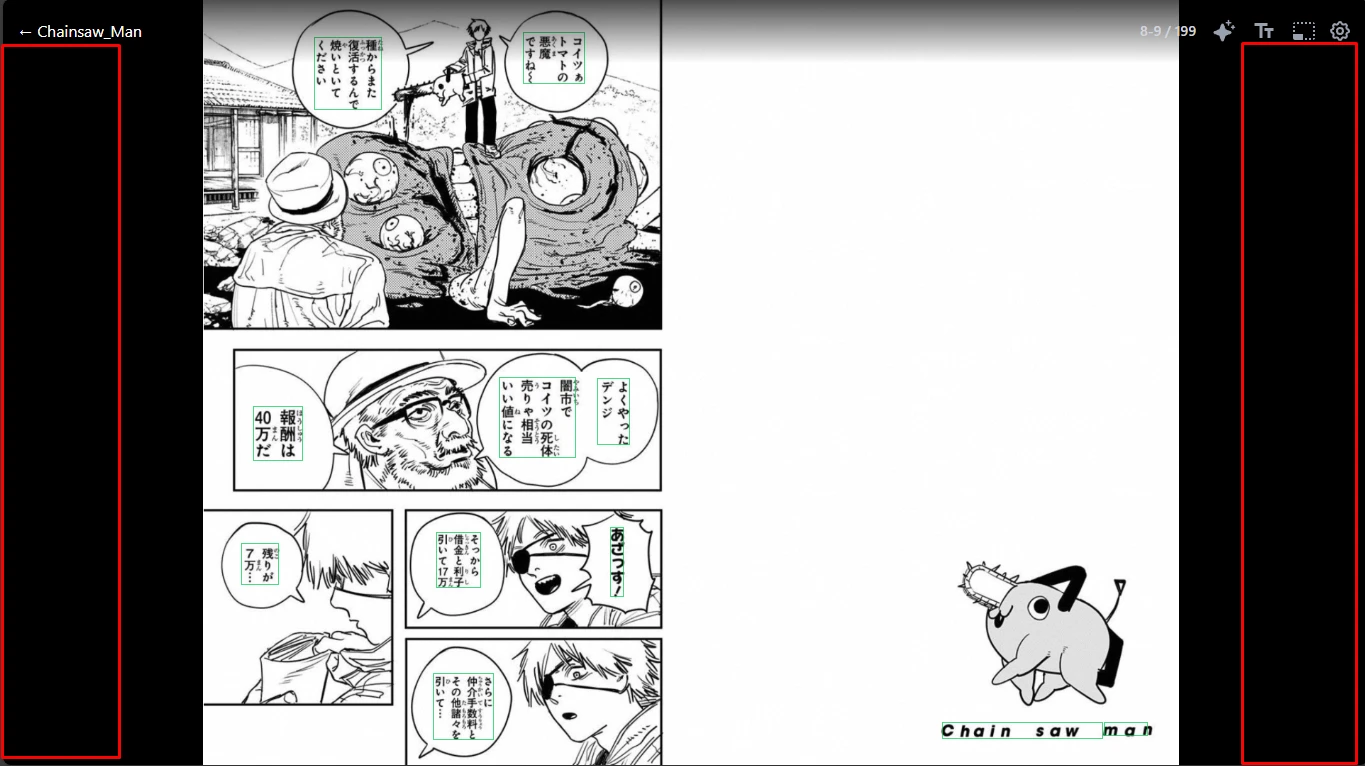
- Side Button Width: You can adjust the width of the on-screen side navigation buttons in the settings panel.
- Zoom and Pan: You can zoom in and pan around the page to get a closer look at details.
- Progress Saving: Your reading progress, including the current page and completion status, is saved automatically to your account for each volume.